Calculation
Work in the Calculation workspace is organized as:
Active directory -> Session -> Module (Equilibrium / Solidification / ...)
Open — choose an active directory. Session files and the calculation log (
equilipy_gui_log.txt) are stored there.New Session — create a session, then attach one or more database files (
.dat,.tdb) to it. Units for temperature, pressure, and amount are set per session.Add a module with the module buttons in the sidebar, fill in the conditions, and press Calculate (or Calculate All for every module in the session).
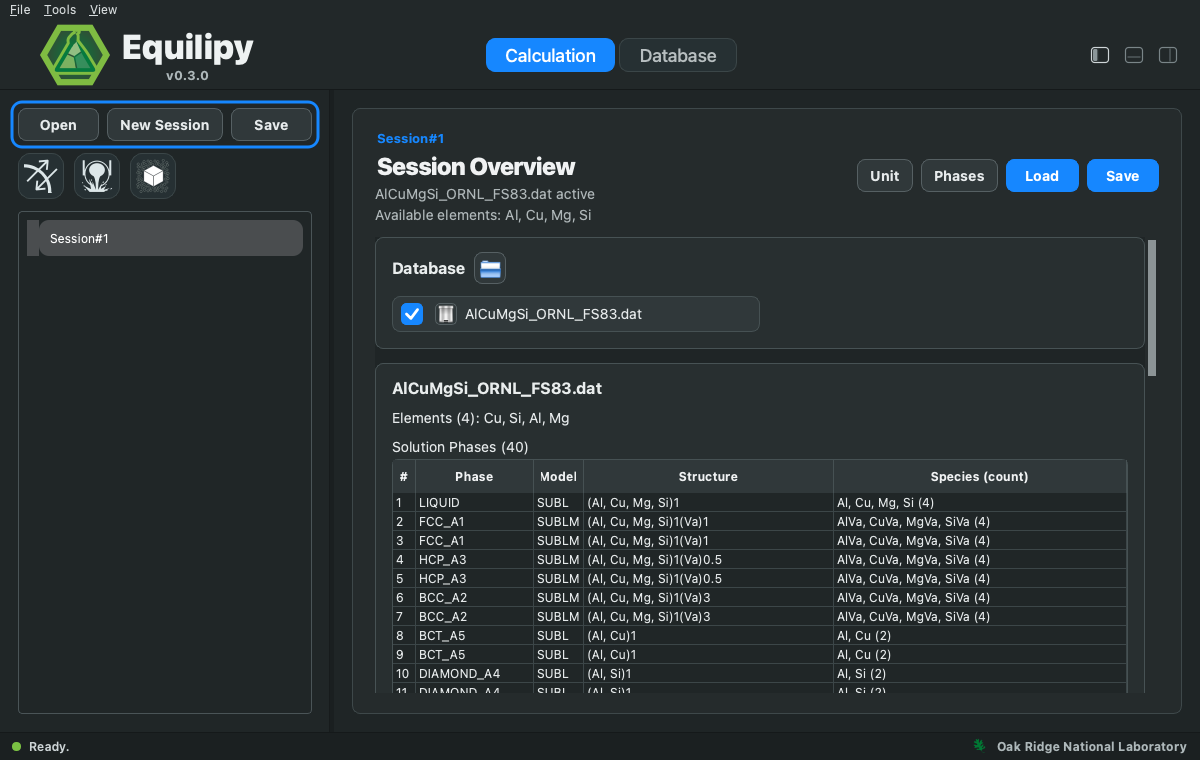
Sessions and modules can be saved and reloaded (Save/Load), including
calculated results, so a session can be reopened later without recomputing.
Equilibrium
Computes phase equilibrium for one condition or a batch:
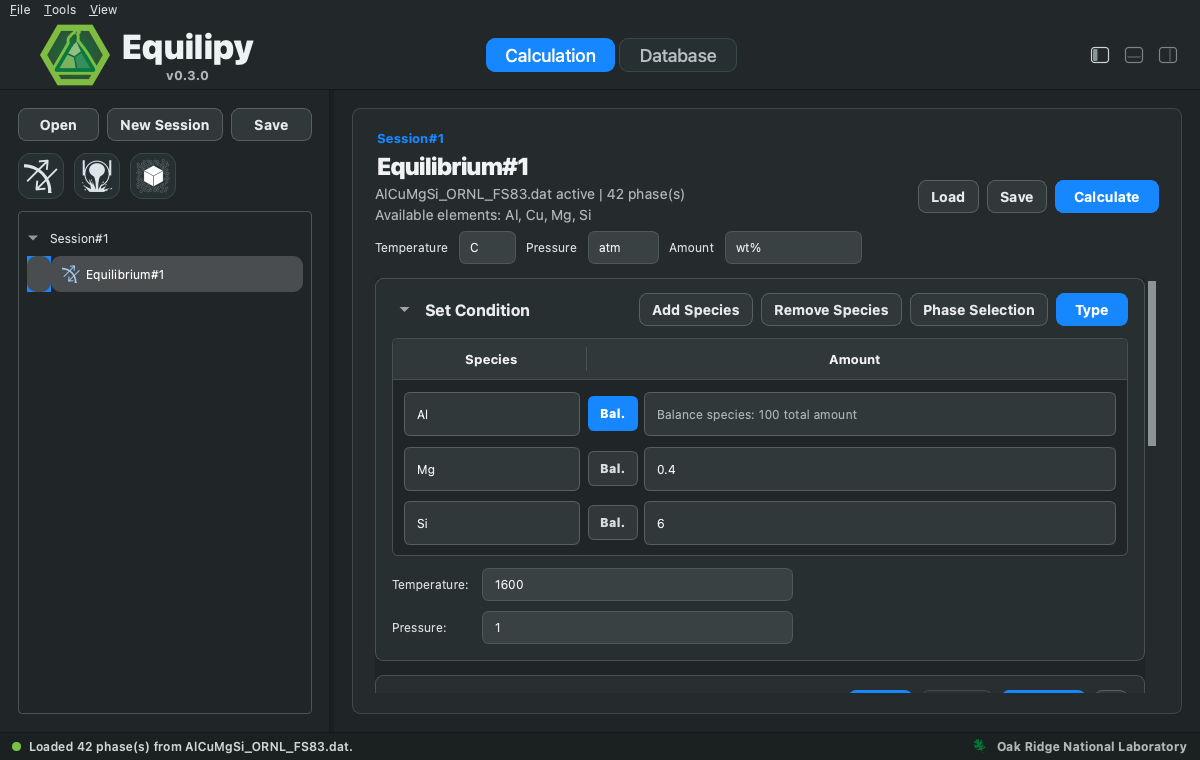
Single: enter the composition in the table and set temperature and pressure. Press Bal. next to a species to make it the balance of the total amount.
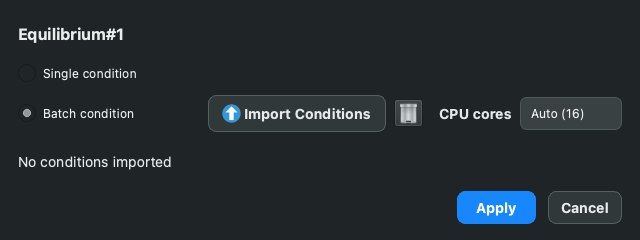
Batch: press the Type button to open the calculation type dialog, select Batch condition, and import a condition table (CSV); each row is one NPT condition. Batch runs execute in parallel over the selected CPU cores.
Use Phases to restrict the calculation to a subset of phases (metastable equilibria); the phase list is read from the attached database for the entered elements.
Solidification
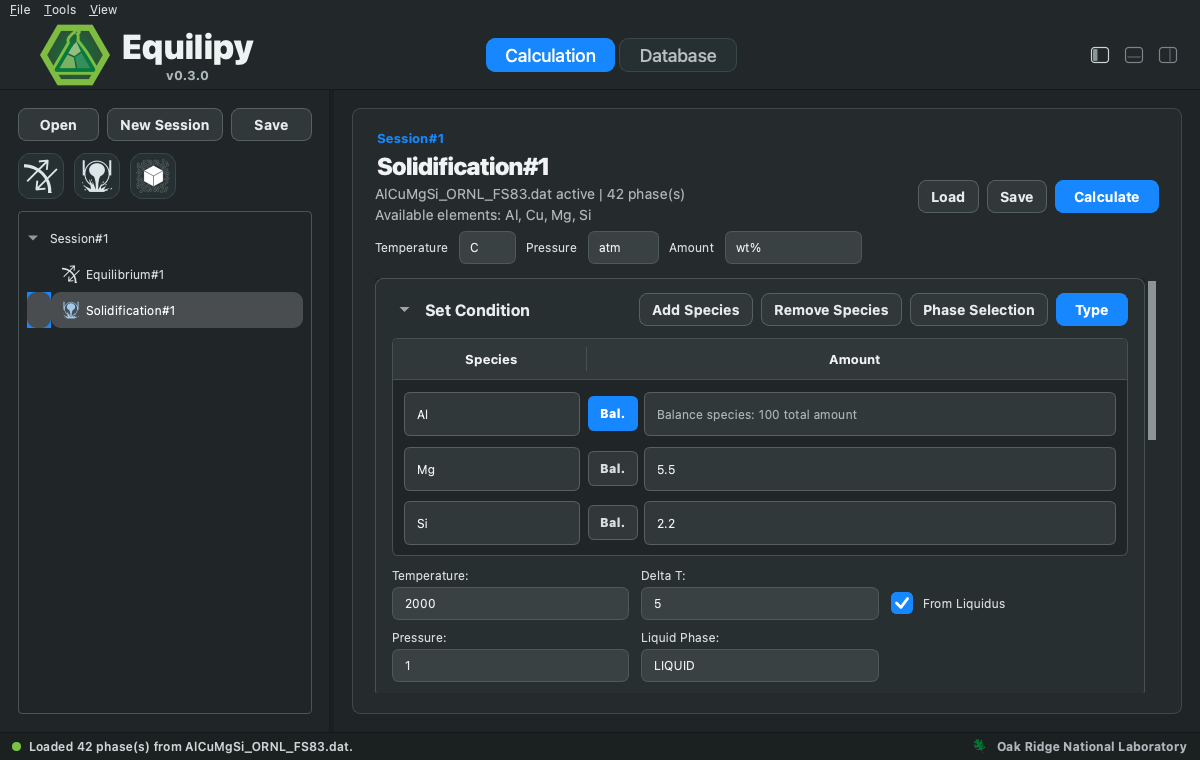
Computes solidification paths on cooling. The calculation type dialog selects:
Model: classical Scheil-Gulliver, NucleoScheil (Scheil with nucleation-undercooling control per phase), or Equilib cooling (full equilibrium at each temperature step).
Mode: single condition or batch.
ΔT temperature step, the liquid phase name, and whether to start from the liquidus.
Nucleation
Reserved for nucleation-specific calculations. This module is not yet available in the current release; the NucleoScheil model under Solidification covers nucleation-controlled solidification.
AI-assist
The Assistant panel (toggled with the panel button at the top right) sets up and runs calculations from plain-language requests. Pick a provider — Local, or an installed CLI assistant such as Codex, Claude, or Gemini — type what you want, and press Send.
The assistant drives the GUI through a fixed set of allowed actions (create session, load database, add module, set units/conditions, select phases, calculate). It reads the current GUI state first, and it never starts a solver on its own: unless you explicitly ask it to run, it only prepares the module so you can review the inputs and press Calculate yourself.
The best results come from one request that states, in order:
Database — the exact file name (skip if the session’s database is already active).
Module — equilibrium, or solidification with the model (Scheil-Gulliver, NucleoScheil, or Equilib cooling).
Units — the amount basis (
wt%, moles, …) and temperature scale.Composition and conditions — amounts with a named balance species, plus temperature and pressure.
Whether to run — end with “and run it” to launch immediately.
For example:
Using AlCuMgSi_ORNL_FS83.dat, add an equilibrium module in wt% with Al as balance, Mg 0.4, Si 6 at 700 C and 1 atm.
Using AlCuMgSi_ORNL_FS83.dat, add a Scheil solidification module in wt%: Al balance, Mg 5.5, Si 2.2, starting from the liquidus with ΔT 5 and liquid phase LIQUID.
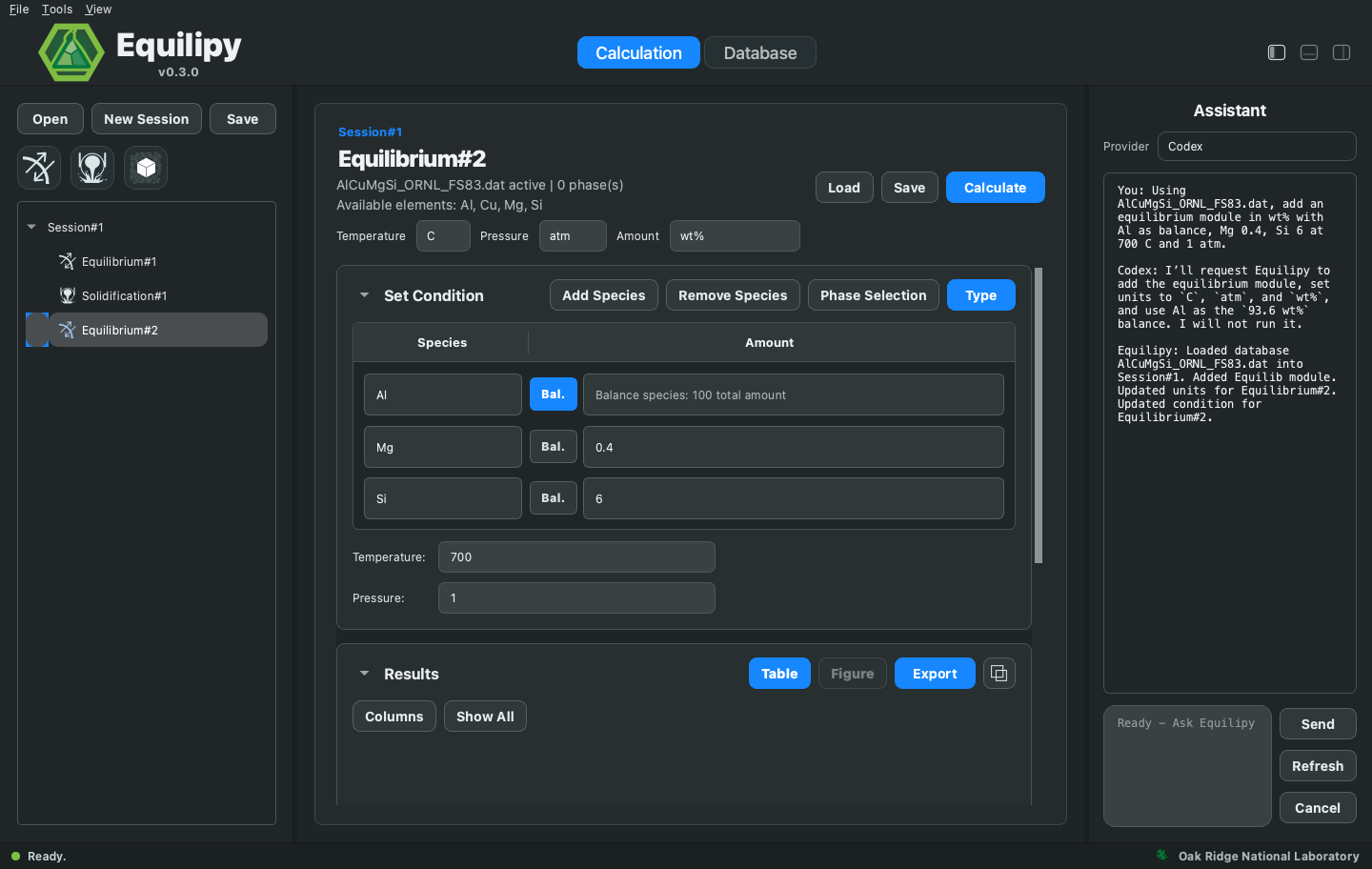
Batch scans also work in plain language: “in wt% with Al as balance at 700 C, scan Mg 0 to 3 in 0.5 steps and Si 0 to 5 in 0.5 steps” fills the batch grid of the selected module.
Note
Always state the amount basis (wt% vs moles) — it is the most common
source of misread compositions — and name the database file explicitly
when the active directory contains more than one. The assistant reports
what Equilipy executed; it will not claim an action ran when it did not.
Results
Each module has a Results section:
Table — calculated values per condition. Columns selects visible columns, Show All resets, Export writes CSV.
Figure — plot any result column against another with configurable palette.
Detach (⧉) — moves the Results panel into its own window, so results from several calculations can be arranged side by side across the screen. Close the window (or press the button again) to dock it back.
The Log panel at the bottom shows solver output; the same text is written
to equilipy_gui_log.txt in the active directory.